

4G SIM Wifi Router 300Mbps High Speed Wifi6 Wireless Wifi
Clm920-Wifi 6
$71.95
Sale price
$71.95
Regular price
$86.95
Skip to product information


4G SIM Wifi Router 300Mbps High Speed Wifi6 Wireless Wifi
$71.95
Sale price
$71.95
Regular price
$86.95
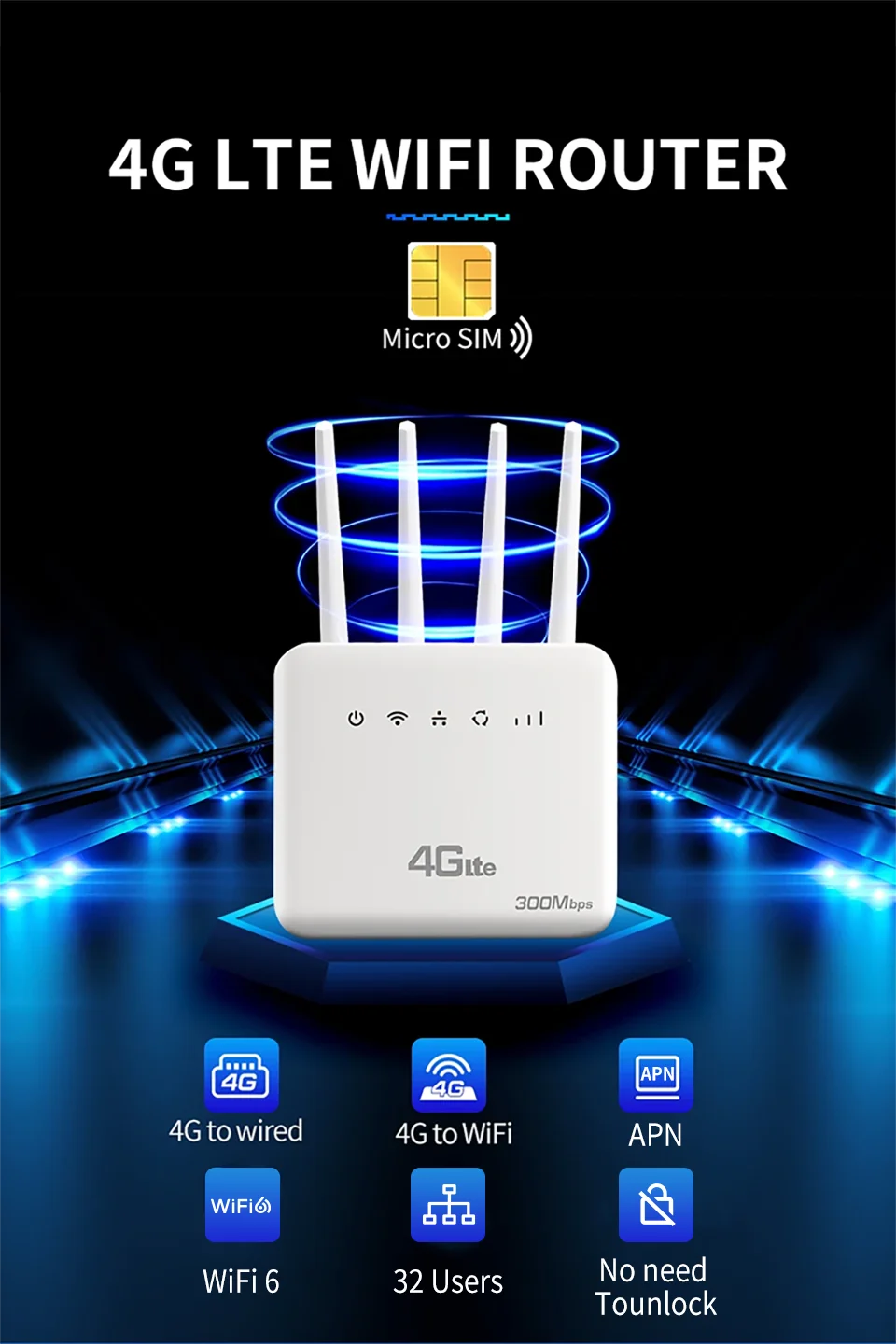
WiFi 6 LTE WiFi Router With 4G SIM Card Slot WiFi Modem 300Mbps Four Antenna Booster Power Signal Mobile WiFi Router for Europe
Message for Chilean buyers:
Dear Chilean buyers.
Our product is not suitable for use in Chile.
Because its frequency band (B1/B3/B7/B8/B20/B28/B38/B40/B41) does not support 4G signals from Chile.
The frequency bands that can be used in Chile are (B2/B4/B5/B7/B28/B66/B38/B40/B41/B2/B4/B5)
You can purchase products suitable for use in Chile at the following link:
Product featuresCLM-920-WIFI 6
4G to WIFI, 4G to LAN
Supports LAN ports
DL 300Mbps,UL 150Mbps
Supports IPV4/IPV6
2.4G, WIFI speed: 300Mbps
Up to 10 devices can be accessed
SSID broadcast function, supporting hidden WIFI
Port filtering, port mapping, watchdog
Supports locking frequency bands
Support FOTA remote upgrade function
Supports TCP/UDP/PPP/HTTP/NITZ/NDIS/NTP/HTTPS/PING/PAP/CHAP
Supporting frequency bands
FDD LTE: B1/B3/B7/B8/B20
TDD LTE:B38/B40/B41
WCDMA:B1/B5/B8
What can you gain
1*Mobile WiFi router
1*Power adapter(EU
1*Network cable(1M)
1*English manual
1*SIM card holder
FAQ:
Q: What is the router’s maximum speed?
A: The router’s maximum theoretical wireless WiFi speed is 300 Mbps.
FDD-LTE (DL/UL): 150 Mbps / 50 Mbps
HSPA+ (DL/UL): 21 Mbps / 5.76 Mbps
Note:
The router’s speed parameters are laboratory-tested theoretical values. Actual network speeds are not fixed and may vary every second. Internet distribution via the SIM card depends on environmental factors (e.g., signal strength, interference), causing significant speed differences. For real-time speed data, check the web management interface homepage.
Q: How to set up internet quickly?
A:Confirm SIM card validity (band compatibility & active data plan).
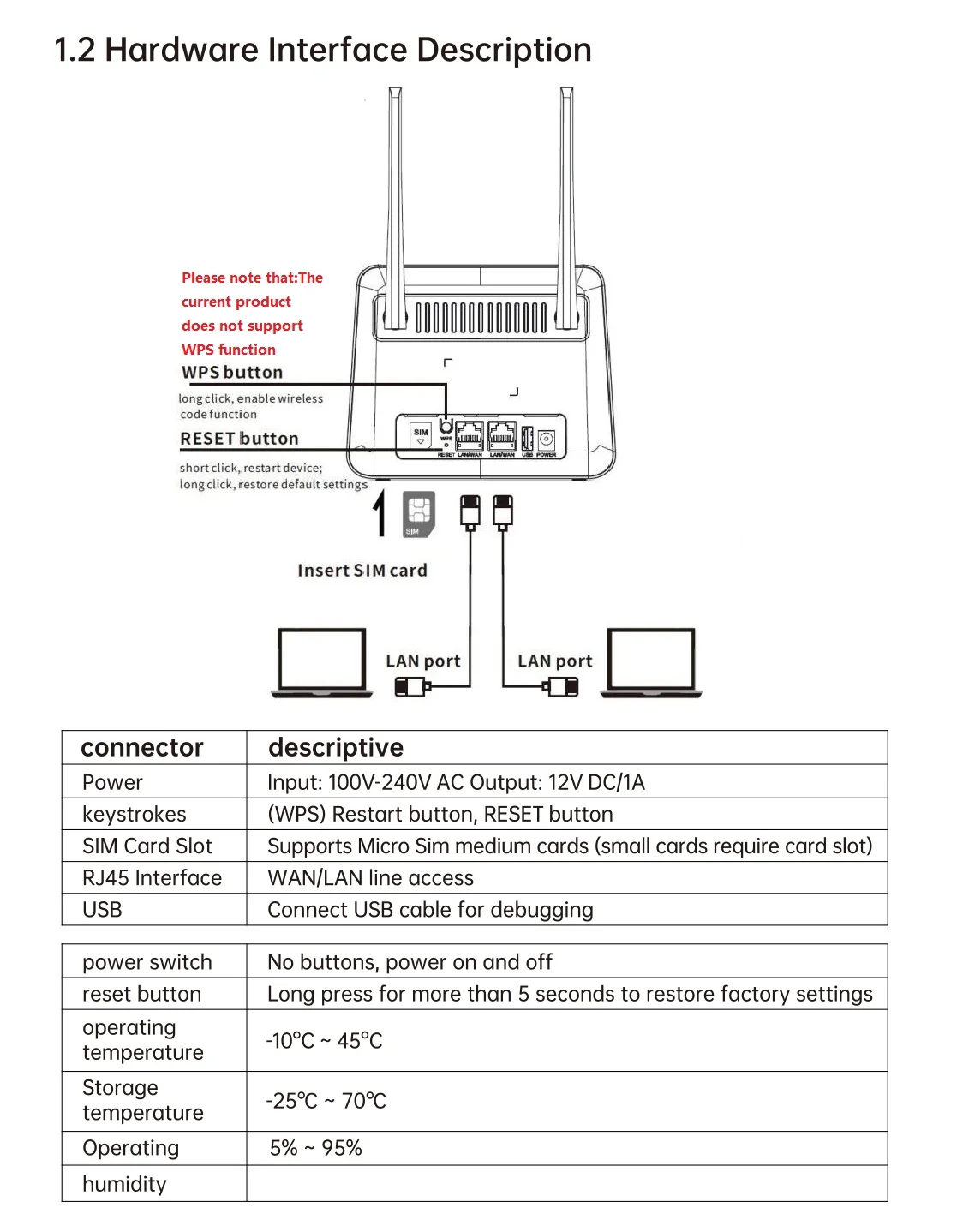
Insert the SIM into the router's slot (ensure correct orientation).
Connect the power supply and wait for system recognition (~1-2 minutes).
Connect to the router's WiFi and enter the password (found on the router's bottom label).
Verification method:
Use a WiFi-connected device to log in to the router's web management interface.
Check the status icon in the top-right corner:
Red "X" = Network error. Red SIM icon = SIM not recognized. All blue = Normal operation.
Note: The device MUST be connected to the router's WiFi to access the web interface. 90% of issues can be self-diagnosed via the interface. After configuration changes, reboot the router and reconnect to WiFi.
Q: Is it compatible with any SIM card?
A:The router supports full-frequency coverage in Europe/Asia/Africa and works with standard SIM cards from all carriers.
Does NOT support contract-bound SIM cards (locked to specific devices or inactive).Verify band compatibility between the router and SIM card using the global frequency chart.
Tip: Use mainstream SIM cards from large carriers to minimize manual configuration (some regional carriers update bands frequently).
Q: What if I forgot the username and password? (How to reset the router?)
A: If you forget your username/password or encounter errors preventing access to the web management interface, press and hold the reset button on the device for 10 seconds (while powered on). Release the button to restore the router to factory default settings.
Q: Can’t find the router’s Wi-Fi signal?
A:*Connect a computer to the LAN port via network cable.
*Log in to the router’s management interface, navigate to Advanced Settings -> WLAN Settings -> WLAN Basic Setup, and ensure the WLAN function is enabled.
*If no computer is available, reset the router (see previous question).
Q: Router lights are on with data transmission, but the speed is slow?
A:Network speed varies due to peak-hour congestion or signal interference in crowded areas.
Optimize speed by:
Placing the router near a window or in a strong signal area.
Avoiding obstacles or interference sources (e.g., microwaves, refrigerators, thick walls).
Reducing distance between devices and the router.
Q: Can I modify the IMEI number?
A: Support modifying IMEI numbers,
1. Log in to the router backend (WEBUI)
2. Enter in the browser address bar http://192.168.1.1/sid.html Press enter, enter the IMEI number to be changed, click SET to change, and if the change is successful, it will prompt OK.





Q: What is included in the package?
A:1× Router host;1× EU DC Power;1× Network cable (1 meter);1× English manual
Note: This package does NOT include a SIM card.
Q: What is the router’s maximum speed?
A: The router’s maximum theoretical wireless WiFi speed is 300 Mbps.
FDD-LTE (DL/UL): 150 Mbps / 50 Mbps
HSPA+ (DL/UL): 21 Mbps / 5.76 Mbps
Note:
The router’s speed parameters are laboratory-tested theoretical values. Actual network speeds are not fixed and may vary every second. Internet distribution via the SIM card depends on environmental factors (e.g., signal strength, interference), causing significant speed differences. For real-time speed data, check the web management interface homepage.
Q: How to set up internet quickly?
A:Confirm SIM card validity (band compatibility & active data plan).
Insert the SIM into the router's slot (ensure correct orientation).
Connect the power supply and wait for system recognition (~1-2 minutes).
Connect to the router's WiFi and enter the password (found on the router's bottom label).
Verification method:
Use a WiFi-connected device to log in to the router's web management interface.
Check the status icon in the top-right corner:
Red "X" = Network error. Red SIM icon = SIM not recognized. All blue = Normal operation.
Note: The device MUST be connected to the router's WiFi to access the web interface. 90% of issues can be self-diagnosed via the interface. After configuration changes, reboot the router and reconnect to WiFi.
Q: Is it compatible with any SIM card?
A:The router supports full-frequency coverage in Europe/Asia/Africa and works with standard SIM cards from all carriers.
Does NOT support contract-bound SIM cards (locked to specific devices or inactive).Verify band compatibility between the router and SIM card using the global frequency chart.
Tip: Use mainstream SIM cards from large carriers to minimize manual configuration (some regional carriers update bands frequently).
Q: What if I forgot the username and password? (How to reset the router?)
A: If you forget your username/password or encounter errors preventing access to the web management interface, press and hold the reset button on the device for 10 seconds (while powered on). Release the button to restore the router to factory default settings.
Q: Can’t find the router’s Wi-Fi signal?
A:*Connect a computer to the LAN port via network cable.
*Log in to the router’s management interface, navigate to Advanced Settings -> WLAN Settings -> WLAN Basic Setup, and ensure the WLAN function is enabled.
*If no computer is available, reset the router (see previous question).
Q: Router lights are on with data transmission, but the speed is slow?
A:Network speed varies due to peak-hour congestion or signal interference in crowded areas.
Optimize speed by:
Placing the router near a window or in a strong signal area.
Avoiding obstacles or interference sources (e.g., microwaves, refrigerators, thick walls).
Reducing distance between devices and the router.
Q: Can I modify the IMEI number?
A: Support modifying IMEI numbers,
1. Log in to the router backend (WEBUI)
2. Enter in the browser address bar http://192.168.1.1/sid.html Press enter, enter the IMEI number to be changed, click SET to change, and if the change is successful, it will prompt OK.